![Logo - Secondary White-1.png]](https://help.askcody.com/hs-fs/hubfs/Logo%20-%20Secondary%20White-1.png?height=50&name=Logo%20-%20Secondary%20White-1.png)
The AskCody Platform has several settings that limit what a user can see or do. Each one answers a different question. Roles decide which parts of the platform a user can open. Memberships decide which reception, service provider or location a user works in. Resource groups decide which rooms and desks a user can book. This article is for IT Admins and Owners who set up access, and helps you pick the right setting before you start.
If you want to learn how roles work first, read User Roles and Memberships on the AskCody Platform.
Pick the right setting
| You want to... | Use | Where to set it up |
|---|---|---|
| Give a user access to a part of the platform, like Central or the Admin Center | Roles | User Roles and Memberships on the AskCody Platform |
| Limit which meetings a user sees in Central, and All Bookings to one location | Location memberships | Location memberships in AskCody |
| Let only some users book certain rooms or desks | Resource groups | Restrict Rooms and Desks that Users are Allowed to Book |
| Take a room out of booking for a while | Set the room to Inactive | How to hide a Calendar from the Bookings add-in for Outlook |
| Give front-desk staff access to a reception | Reception memberships | How to give users access to a Service Provider or Reception |
| Give catering or facility staff, or external partners, access to a service provider | Service provider memberships | How to give users access to a Service Provider or Reception |
Roles: which parts of the platform a user can open
Roles are the first layer. A user needs a role before memberships or resource groups matter. A user can hold several roles at once.
Note
The Owner role covers configuration, not daily use. An Owner still needs roles like Add-in User to book from Outlook.
Location memberships: which meetings a user sees
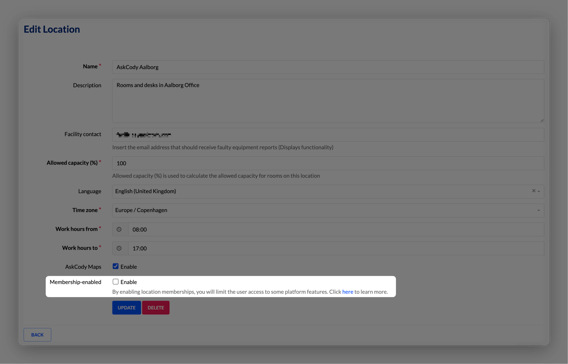
Location memberships limit the meetings a user sees in Central, All Bookings and Maps to the locations they are a member of. Without location memberships, a user with a Central role sees meetings from all locations.
Use location memberships when you have several offices and coordinators should only work with their own office.
Note: Users with the Owner role always see all locations.
Resource groups: which rooms and desks a user can book
Resource groups limit which rooms and desks a user can see and book. You add rooms or desks to a resource group, and then add Microsoft Entra ID (former Azure AD) security groups as members. Members of those groups only see the resources in their resource group.
Use resource groups for rooms that belong to one team, like a board room for the executive team, or desks for a department.
Note: Rooms and desks that are not in any resource group stay visible to everyone at that location.
Note
Currently, Resource Groups applies exclusively to the Bookings Add-in for Outlook. This functionality will be extended to the rest of the AskCody platform.
Inactive rooms: take a room out of booking for a while
Setting a room to Inactive hides it from the Bookings add-in for everyone. Use it when a room is being renovated or is out of use for a period. It does not change the room in Microsoft Exchange.
Use resource groups, not Inactive, when the room should stay bookable for some users.
Reception and service provider memberships: who handles visitors and orders
Reception memberships give front-desk staff access to one reception, so they can check visitors in and out, print labels and register visitors. Service provider memberships give catering and facility staff access to the service requests of one service provider.
Both can be set up by hand, or automatically from Microsoft Entra ID groups if you use SCIM Provisioning / App Provisioning. Read How to give users access to a Service Provider or Reception to add members, including external users.
When the setting is about the room, not the user
Some rules limit how a room or service can be booked, no matter who books it. You find those in the module they belong to: