![Logo - Secondary White-1.png]](https://help.askcody.com/hs-fs/hubfs/Logo%20-%20Secondary%20White-1.png?height=50&name=Logo%20-%20Secondary%20White-1.png)
Requirements
To change booking/approval settings for room mailboxes, you must have Exchange permissions that allow resource mailbox configuration and booking policies. Microsoft lists the required role groups as:
-
Organization Management
-
Recipient Management
-
Help Desk (if your org allows that group to manage resources)
In many Microsoft 365 tenants, this corresponds to being an Exchange Administrator or Global Administrator in Entra ID/Microsoft 365, because those roles are typically members of Organization Management in Exchange.
If you don’t see Recipients → Resources in Exchange Admin Center, you likely don’t have one of the roles above.
Step-by-step: Configure approval for a room mailbox (for managed rooms)
-
Open Exchange Admin Center
Go to the Exchange Admin Center at:https://admin.exchange.microsoft.com -
Navigate to Rooms/Resources
In the left menu, go to Recipients → Resources -
Select the room you want to configure
Find the room mailbox in the list and click it to open the details pane -
Open booking / approval settings
Click on the section called Booking, and then on Booking delegate settings (wording can vary slightly according to your selected locale). This is where Exchange controls whether the room auto-accepts or needs approval. -
Choose how approvals should work
You typically have two common setups: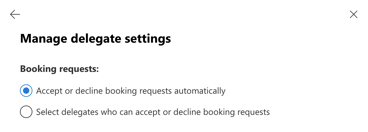
-
Accept or decline booking requests automatically
Set the room to Auto-accept requests that follow the policy. Exchange will accept or decline automatically based on availability and your limits (booking window, max duration, working hours, etc.). -
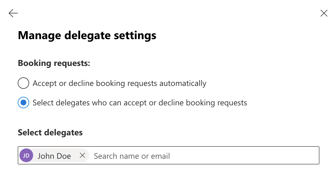
Select delegates who can accept or decline booking requests (Manual approval, commonly used for high-demand or restricted rooms)
-
Enable delegates to accept/decline requests.
-
Add one or more approvers (delegates).
-
-
-
Save your changes
Click Save at the bottom of the room mailbox settings.
How users experience room acceptance/rejection
If the room is set to automatic approval
-
A user adds the room to a meeting in Outlook
-
Exchange checks availability and policy
-
The room auto-accepts if available and within limits, or auto-declines if not.
Users see the acceptance/decline email from the room automatically
If the room requires manual approval by delegates
-
A user adds the room to a meeting and sends the invite
-
Exchange marks the booking as pending and forwards a request to the room delegates
-
A delegate approves or rejects in Outlook:
-
The delegate receives an email like “Meeting request for Room X”
-
They click Accept or Decline
-
-
Once the delegate responds:
-
The organizer receives a confirmation/decline
-
The room calendar updates accordingly
-
Delegates (people approving/rejecting meeting requests) don’t need to open the room calendar to approve. They just respond to the incoming approval email in Outlook.