![Logo - Secondary White-1.png]](https://help.askcody.com/hs-fs/hubfs/Logo%20-%20Secondary%20White-1.png?height=50&name=Logo%20-%20Secondary%20White-1.png)
Members are the users who can work inside a specific Service Provider in Services, or a specific Reception in Visitors. A Service Provider or Reception has two member fields. One is for users created manually in AskCody. The other shows users who get access from your Microsoft Entra ID (former Azure AD) groups through App Provisioning.
This is useful when people outside your organization need access. For example, an external catering partner or a contracted reception team. They are not in your Entra ID, so App Provisioning cannot give them access. You can create them in AskCody and add them as members manually.
If you would like to learn more about how roles and memberships work, read User Roles and Memberships on the AskCody Platform.
Requirements
-
You have the Owner role in the AskCody Management Portal.
-
The Service Provider or Reception already exists. Read Configuring AskCody Services or Configuring AskCody Visitors to create one.
The two member fields
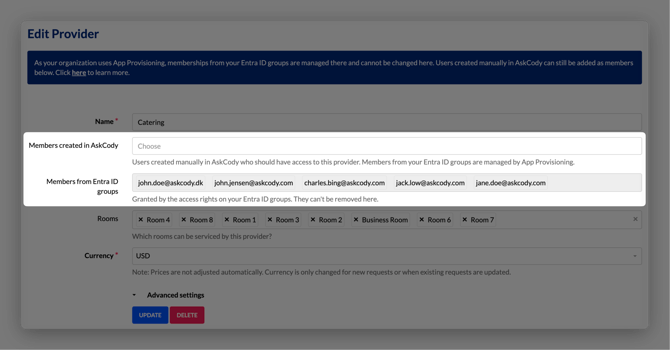
Members created in AskCody
Users created manually in AskCody who should have access to this Service Provider or Reception. You add and remove these members here.
Use this field for users who are managed outside your Entra ID, such as external service providers.
Members from Entra ID groups
Users who get access from the access rights on your Entra ID groups. These members are managed by App Provisioning. They are shown here so you can see everyone who has access, but you cannot add or remove them here.
To change who is in this field, change the user's group membership in Entra ID, or change the access rights on the group in AskCody. Read Set up SCIM-based automatic user management with Microsoft Entra ID to learn how group access rights work.
Note: Changes made in Entra ID are not shown right away. A new sync cycle starts about every 40 minutes.
How to give access automatically from Entra ID groups (recommended)
If your organization uses App Provisioning (SCIM), let your Microsoft Entra ID groups decide who has access to a Service Provider or Reception. Access then stays in step with your groups, and you do not have to add people one by one.
Requirement: The Integration Administrator role in AskCody.
- Click the configuration wheel in the top left corner to open the Admin Center.
- Go to Integrations, then click Entra ID Integration.
- Find the Entra ID group and click Edit.
- In the Service Provider Memberships field, select the Service Providers for this group. In the Reception Memberships field, select the Receptions.
- Click Update.
Every member of the group now has access to the selected Service Providers and Receptions. They show up in the Members from Entra ID groups field on each one.
Note: Access is dynamic. If someone leaves the Entra ID group, their membership is removed automatically.
How to add an external user as a member
Step 1: Create the user in AskCody
-
Log in to the AskCody Management Portal.
-
On the left panel, click on Admin Center.
-
Click on Users and choose Users.
-
Click Add.
-
Fill in the user's information.
-
Choose the role that fits the user: Services Portal User for a Service Provider, or Visitors Portal User for a Reception.
-
Click Add.
Step 2: Add the user as a member
- In the Admin Center, go to Services and select Service Providers, or go to Visitors and select Receptions.
- Click on the Service Provider or Reception you want to give access to.
- In Members created in AskCody, choose the user.
- Click Update.
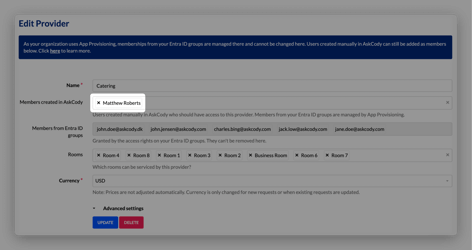
The user now has access to that Service Provider or Reception. A user can be a member of more than one Service Provider or Reception.
How to remove a member
- Open the Service Provider or Reception.
- In Members created in AskCody, remove the user.
- Click Update.
Members from Entra ID groups cannot be removed here. Remove them in Entra ID, or change the access rights on their group in AskCody.
If you need help, submit a ticket to AskCody Support.