![Logo - Secondary White-1.png]](https://help.askcody.com/hs-fs/hubfs/Logo%20-%20Secondary%20White-1.png?height=50&name=Logo%20-%20Secondary%20White-1.png)
Contents
- What is a reception member?
- Which method should I use?
- Adding members manually
- Adding members automatically (recommended)
What is a reception member?
A reception member is a user who has access to a specific reception in AskCody, typically someone working at the front desk. Members can perform all visitor operations within that reception, including checking visitors in and out, printing labels, registering visitors, and adding notes to visits.
Which method should I use?
The method for adding members depends on how your organization manages users in AskCody.
If your organization uses the automatic user management system (via App Provisioning and SCIM), we recommend using the automatic method. This keeps reception access in sync with your Entra ID groups, so membership is updated automatically as your team changes.
If your organization does not use automatic user sync, you will need to add members manually.
Adding members manually
- Click the configuration wheel at the top left corner to open the Admin Center
- Go to Visitors and then click Reception
- Locate the reception you want to add members to and click Edit
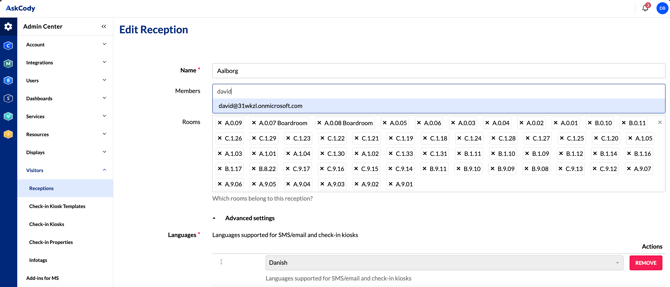
- In the Members field, search for and select the users you want to add:
- Click Update
The selected users will now have access to the reception and can perform visitor operations there as a receptionist.
Adding members automatically (recommended)
If your organization uses the automatic user sync service through App Provisioning and SCIM, you can assign reception membership based on Entra ID group memberships. This is the recommended approach because it keeps your reception access up to date automatically.
To access this configuration, you need the Integration Administrator role in AskCody.
Set up automatic reception membership
- Go to the Admin Center by clicking the configuration wheel at the top left corner
- Navigate to Integrations and then click Entra ID Integration
- Locate the Entra ID group whose members you want to give reception access to and click Edit
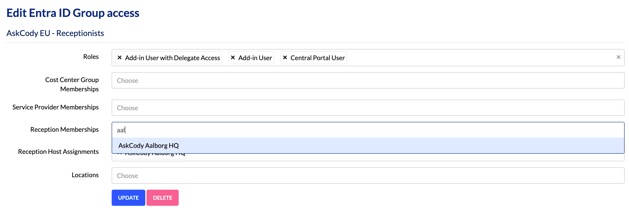
- In the Reception Memberships field, select the reception(s) that the members of this group should have access to:
- Click Update.
Every member of the selected Entra ID group will now have access to the chosen reception(s) as a receptionist and can perform visitor operations there.
Because this method is driven by Entra ID group memberships, reception access updates dynamically. If someone is removed from the group that grants them access, their reception membership is automatically revoked. To learn more about how user synchronization works, see User Management with AskCody.