![Logo - Secondary White-1.png]](https://help.askcody.com/hs-fs/hubfs/Logo%20-%20Secondary%20White-1.png?height=50&name=Logo%20-%20Secondary%20White-1.png)
Contents
- What is a host?
- Which method should I use?
- Adding hosts manually
- Importing hosts from a CSV file
- Adding hosts automatically (recommended)
What is a host?
A host is someone in your organization who typically hosts meetings and receives visitors. Hosts can pre-register visitors at the reception using the Visitors Add-in for Outlook, and they can be selected as the person a visitor is meeting when someone checks in at the check-in kiosk or directly at the reception by a receptionist through the web app.
Which method should I use?
The method you use to add hosts depends on how your organization manages users in AskCody.
If your organization uses the automatic user management system (via App Provisioning and SCIM), we recommend using the automatic method described below. This keeps your host list in sync with your Entra ID groups, so hosts are added and removed automatically as your team changes.
If your organization does not use the automatic user sync, you will need to add hosts manually.
Adding hosts manually
Navigate to the Visitors module
Before adding hosts, make sure you are working in the correct reception.
- Click on Visitors in the left side panel (the aquamarine V icon):

- At the top right corner, click on your profile initials and verify the reception name. If you need to switch to a different reception, select it from the list.
If you don't see a reception listed here, or can't access any receptions, you may need to be added as a member of a reception first. See How to Add Members to a Reception for details.
Add a host individually
- In the left side panel, go to Hosts and click Manage Hosts
- Click New Host
- Fill in the host's details, including their preferred notification options and language
The language you select here determines the language of the notifications the host will receive. The available languages in this list are the ones that have been added to the reception's configuration. To learn how to manage these, see How to change the language?
4. Save the new host
Import hosts from a CSV file
If you need to add multiple hosts at once, you can import them using a CSV file. To do this, go to Hosts and click Import Hosts in the left side panel: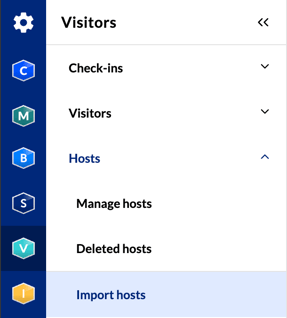
- Prepare a CSV file with your host information. For more information about the file requirements and content, click here
- Click Choose File and select your CSV file
- Optionally, check the box for Remove all hosts from the reception that aren't defined in the CSV file. This is useful when you manage hosts entirely through file imports and each import reflects the complete and current list of employees at a given location
- Click Import
Adding hosts automatically (recommended)
If your organization uses the automatic user sync service through App Provisioning and SCIM, you can assign hosts to receptions based on their Entra ID group memberships. This is the recommended approach because it keeps your host list up to date automatically.
To access this configuration, you need the Integration Administrator role in AskCody.
Set up automatic host assignment
- Go to the Admin Center by clicking the configuration wheel at the top left corner
- Navigate to Integrations and then click Entra ID Integration
- Locate the Entra ID group you want to assign to a reception and click Edit
- In the Reception Host Assignments field, select the reception(s) that this group's members should be added to as hosts:
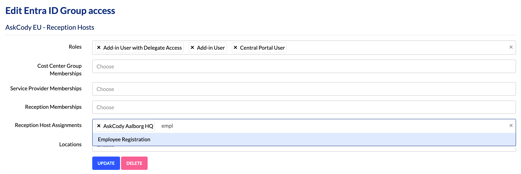
- Click Update.
Once configured, all members of the selected Entra ID group will be added as hosts in the chosen reception(s). They will be able to pre-register visitors, and they will appear as selectable hosts at the check-in kiosk and in the receptionist's web app when someone arrives at the reception for check-in.
Because this method is driven by Entra ID group memberships, the host list updates dynamically. If someone is removed from the group, their host access is automatically revoked. To learn more about how user synchronization works, see User Management with AskCody.