![Logo - Secondary White-1.png]](https://help.askcody.com/hs-fs/hubfs/Logo%20-%20Secondary%20White-1.png?height=50&name=Logo%20-%20Secondary%20White-1.png)
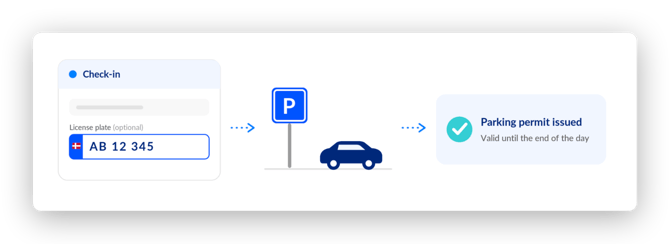
With the APCOA Denmark parking integration, visitors who register their license plate at the Check-in Kiosk, or through your reception, automatically receive an APCOA parking permit that is valid until the end of the day. The integration is available for locations in Denmark only.
This article is written for IT Admins and Admins who configure the integration in the AskCody Management Portal. If you are new to Visitor Management with AskCody, start with How to set up Visitors.
Requirements for using the APCOA Denmark parking integration
- Locations in Denmark. APCOA Denmark operates parking areas in Denmark, so the integration applies to Danish locations only.
- An active APCOA parking agreement. Your organization contracts and pays APCOA directly for the parking solution. AskCody transmits the permit data to APCOA but is not the billing party. If your parking spaces are owned by a third party, permission to use them for visitor parking is agreed between you, APCOA, and the space owner.
- The integration enabled by AskCody. The APCOA Denmark integration is switched on per customer by AskCody. Contact your Customer Success Manager to have it enabled. Until it is enabled, the APCOA Denmark section is not visible in your Admin Center.
- Your APCOA API key. APCOA issues one API key per customer. You receive it from your APCOA contact.
- Your parking area code(s). Each parking area has a four-digit area code issued by APCOA. You need the code(s) for the area(s) your visitors park in, per location.
- An Admin or Owner role in the AskCody Management Portal to access the Admin Center.
How to get your agreement with APCOA in place
If you do not yet have an APCOA agreement that covers visitor permits, this is how the process works on the APCOA side:
- Get the parking area owner's permission first. If your organization does not own the parking area, the owner must approve that it is used for visitor parking. A plain email confirmation from the owner is enough, and it is fastest when the owner sends it directly to your APCOA contact person. APCOA recommends having this approval in place before you contact them, as it is usually the slowest part of the process.
- Reach out to your APCOA contact person. There is no separate department or request form. If you do not have an APCOA contact person, the owner of the parking area can point you to theirs.
- Have this information ready: your company name, the parking area number(s) you want covered (every APCOA parking area has a number, and one location can have several), the name of the company that owns the parking area, and AskCody as the supplier of the integration.
- Sign the agreement with APCOA. APCOA prepares an agreement covering their prices and terms, and starts once it is signed. In APCOA's experience, the owner approval and the signing typically take three to four weeks in total, as agreements often pass through legal review and management signature, so plan your rollout with that in mind. APCOA often prepares the API key while the agreement is out for signature, so once it is signed, things move quickly.
- Receive the API key and parking area codes. APCOA sends them to you or to AskCody, depending on what you agree, and you are ready to configure the integration below.
Note: the agreement, prices, and permit terms are strictly between your organization and APCOA. In parallel, remember to have the integration enabled on the AskCody side: reach out to your AskCody contact or submit a support ticket.
How to configure the integration in the Admin Center
Once AskCody has enabled the integration for your organization:
- Open the AskCody Management Portal and go to the Admin Center.
- In the sidebar, click on Integrations and select Visitors.
- Find the APCOA Denmark section.
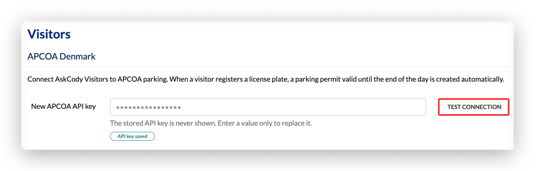
- Enter your APCOA API key. The key is stored encrypted and is never shown again in the interface after saving.
- Click Test to confirm the key works against your APCOA account.
- For each location, select the parking area code(s) visitors can park in. You can select more than one area per location. When a permit is issued, it covers all configured areas for that location.
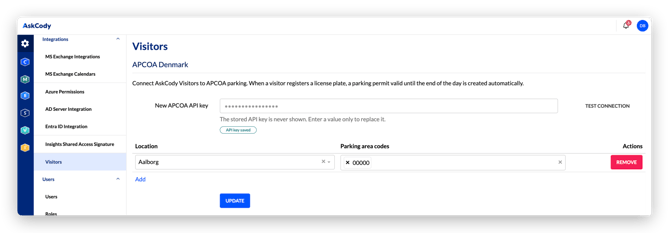
Note: The API key is issued per customer, while parking area codes are configured per location. If you add a new office location later, remember to configure its parking area code(s) before visitors start checking in there.
How visitors register their license plate
The license plate is an optional field on every check-in. It can be filled in two ways:
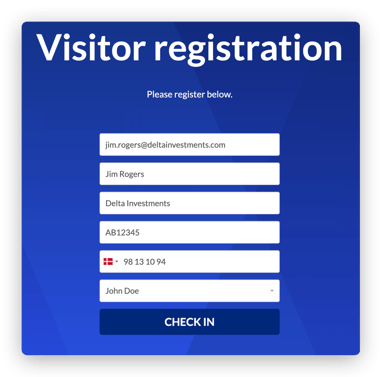
- At the Check-in Kiosk. The visitor enters their license plate during check-in. Read more about the visitor flow in How to use the check-in kiosk as a visitor.
- By your reception. The receptionist enters or corrects the plate when registering a visitor manually in the Visitor Management Portal, or edits it on an existing check-in.
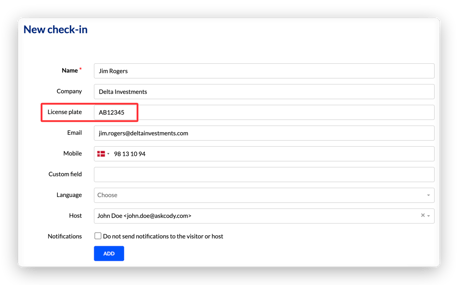
Note: When a license plate is entered, the visitor must also provide an email address or a mobile number before check-in can complete. APCOA uses this contact information to notify the visitor about the permit. A check-in without a license plate works exactly as it does today, and both contact fields stay optional.
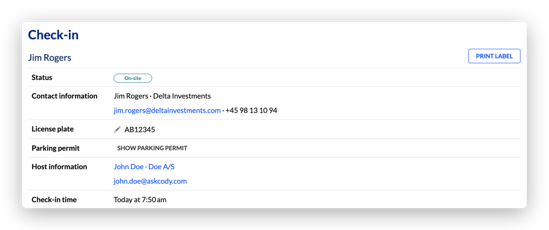
The plate is stored on the check-in and is visible on the individual check-in detail in the Visitor Management Portal, where it can also be edited by the reception, in case any details need to be adjusted (for instance, if a permission was issued to the wrong license plate).
How parking permits are issued and managed
When a visitor with a registered license plate checks in at a location with the integration configured:
- AskCody first checks with APCOA whether a permit already exists for that plate on the same day, so no duplicates are created.
- If no permit exists, AskCody issues one valid from the time of registration until the end of the current day, covering the configured parking area(s).
On the individual check-in in the Visitor Management Portal, you find a License Plate line and a button that reads either Issue parking permit (when no permit exists yet) or Show parking permit (when one has been issued). Showing the permit displays the license plate, the contact details sent to APCOA, and how long the permit is valid.
What happens if the permit cannot be issued
Registering a parking permit never blocks a check-in. If the call to APCOA fails, the visitor is still checked in and the license plate is still saved. The error is shown at the Check-in Kiosk if the failure happens during kiosk check-in, and failed permit registrations are visible to your reception so they can issue the permit manually from the check-in detail. If permit registration keeps failing, verify your API key with the Test connection button in the Admin Center --> Integrations --> Visitors section, and submit a support ticket if the issue persists.
Data handling
License plates are personal data. Plates and permit references stored on check-ins follow the same anonymization and retention rules as your other visitor data. Read more under Data processing and legal.