![Logo - Secondary White-1.png]](https://help.askcody.com/hs-fs/hubfs/Logo%20-%20Secondary%20White-1.png?height=50&name=Logo%20-%20Secondary%20White-1.png)
When you set up automatic user management with Microsoft Entra ID (former Azure AD), you need to map the attributes that hold user and group data in Entra ID to the matching user attributes in AskCody. This makes sure that user and group information is created and updated correctly in AskCody.
There are two ways to configure this mapping, and you only need to use one of them: automatically, by pasting a ready-made schema (recommended for most organizations), or manually, by editing each attribute yourself. This article covers the manual method.
Note: Use this article only if you are configuring the attribute mapping manually. If you would rather use the faster automatic method, follow the Configure Attribute Mapping section in the main guide instead: Set Up a SCIM-based Automatic User Management and Synchronization with Microsoft Entra ID. Do not run both methods, as that leads to duplicated or conflicting configuration.
This article picks up from the Mappings section of your Enterprise Application in Entra ID. If you have not created and connected the Enterprise Application yet, start with the main setup guide and return here when you reach the attribute mapping step.
Configure attribute mapping manually
Let us start by setting up mapping for groups.
Click on Provision Microsoft Entra ID Groups: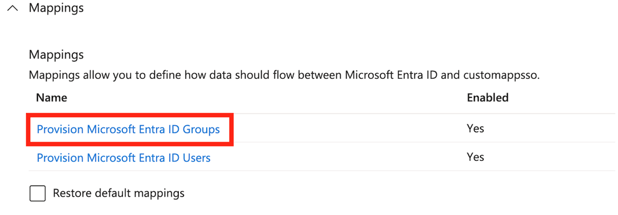
Then on the Attribute Mappings section click on Edit on the line with ‘externalId’ on the customappsso Attribute and ‘objectId’ in the Microsoft Entra ID Attribute:

Then proceed to change the “Match objects using this attribute” settings from “No” to “Yes”:
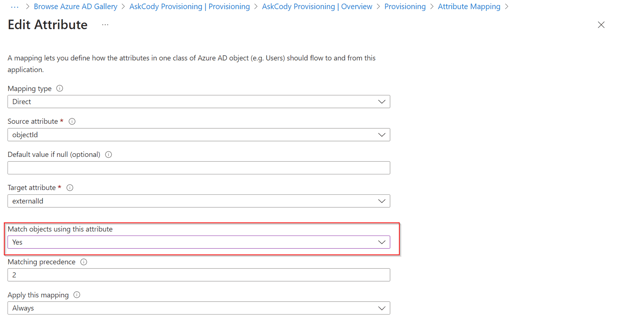
Then make sure that the "Matching precedence" is set to 2.
Click OK at the bottom to save the changes.
You should now be taken back to the Group mapping settings. This time, click on edit on the “displayName” row:

In here, make sure to set the “Match objects using this attribute” setting from “Yes” to “No”:
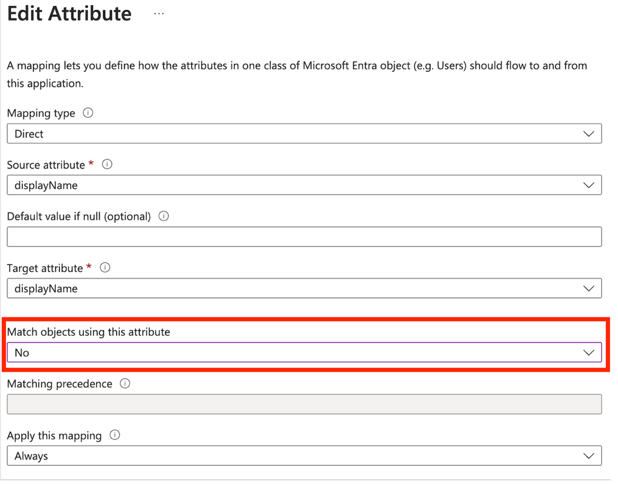
Click on “Ok” at the bottom to save the changes.
You should now be taken back to the Group mapping settings. To finalize the Group mapping settings, click on Edit on the “objectId” line again:

This time, make sure to set the Matching precedence to “1” and click “Ok” at the bottom to save changes:
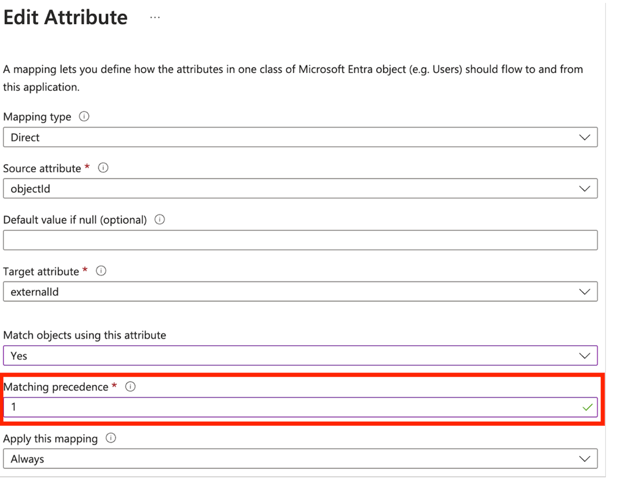
You should now be taken to the Group attribute mapping page. Make sure to click on “Save” at the top left corner of the screen:
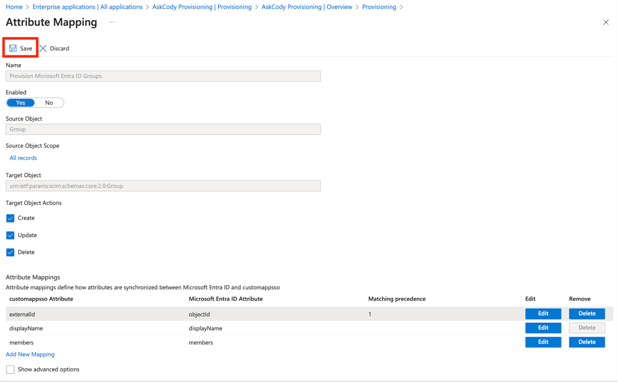
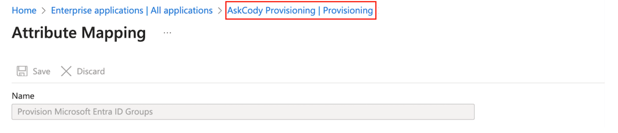
After saving the changes, click on the last step of the navigation trail on top of the window:
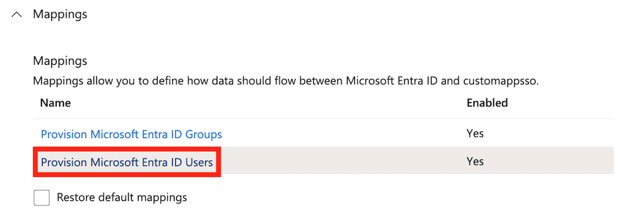
This time, click on “Provision Microsoft Entra ID Users” to start configuring the attribute mapping for Users.
By default, Azure has several attributes mapped in this area:
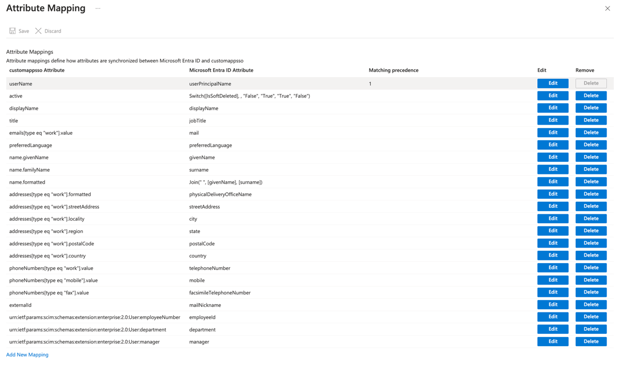
Please click on “Delete” on all of them, except for:
- userPrincipalName
- givenName
- surname
Your Attribute Mappings should look like this in this step (the sorting order in the list may look different, but it does not have an impact as long as all attributes are listed):

Next, please click on “Add New Mapping” at the bottom:

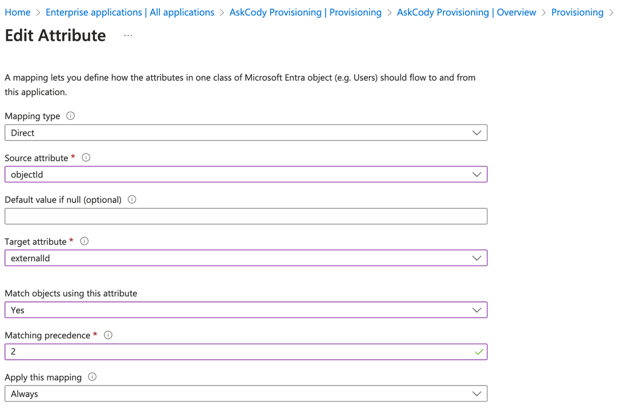
In here, we will be adding an additional attribute, necessary to identify users in AskCody.
- Click on “Source attribute” and find “objectId” in the dropdown list and click on it.
- On “Target attribute” find “externalId” in the dropdown list and click on it.
- Under “Match objects using this attribute” Set the value to “Yes”
- Under “Matching precedence” make sure there’s a value set. If empty, type the number ‘2’.
- Click on “Ok” at the bottom to save the changes
The current page with the attribute mapping for “objectId” should look like this:
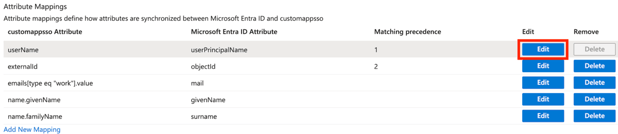
Next, click on the Edit button on the line with the “userName” attribute:
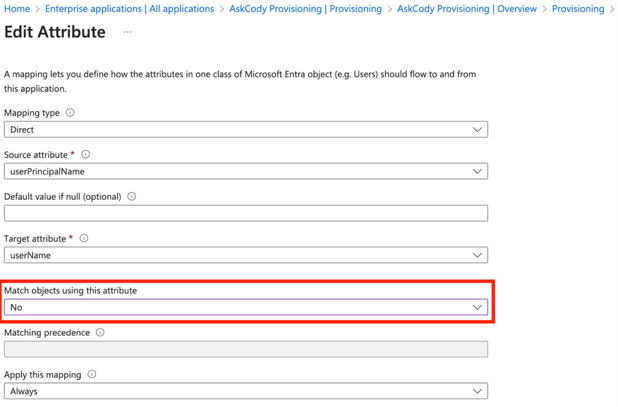
Make sure to set the “Match objects using this attribute” field to “No”:
Click on Ok at the bottom to save the changes.
You should be taken to the User Attribute Mapping again. Next, please click on Edit on the line with the “externalId” attribute:
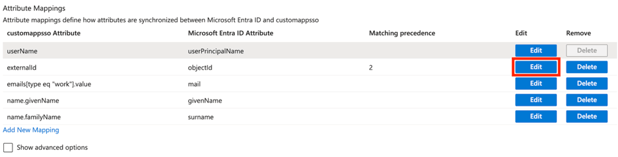
In here, set the “Matching precedence” field to “1”:
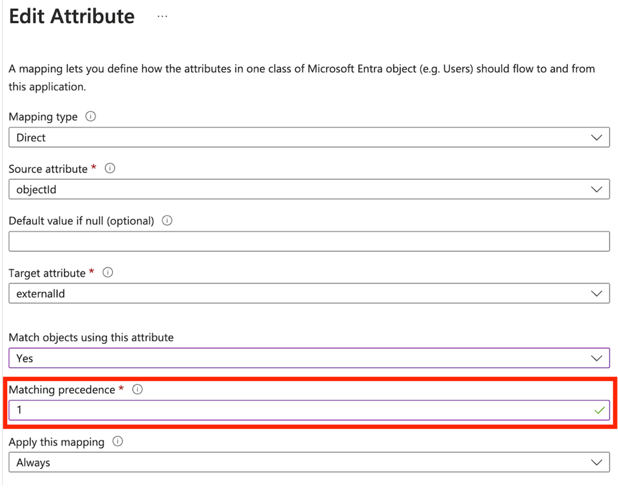
Then click on “Ok” at the bottom to save changes.
Your User Attribute Mappings should look like the following. The list sorting does not have relevance in here, so if your list has a different sorting, it is still configured correctly, as long as the number of rows and the settings on each row are the same as the image below:
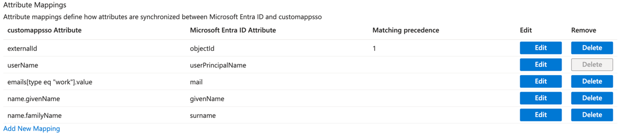
To make sure and update any manually created users in AskCody prior to enabling the sync via App Provisioning, we need to make sure to add the “mail” attribute to the Matching precedence options. For that, please click on Edit on the line with the “mail” attribute:
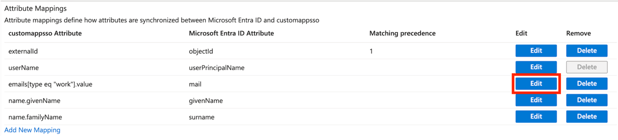
In here, please click on the “Match objects using this attribute” field, and set it to “Yes”, and then verify that the Matching precedence is set to “2” (should happen automatically after setting yes in the “Match objects using this attribute” field). If it is not set to “2”, please do so manually:
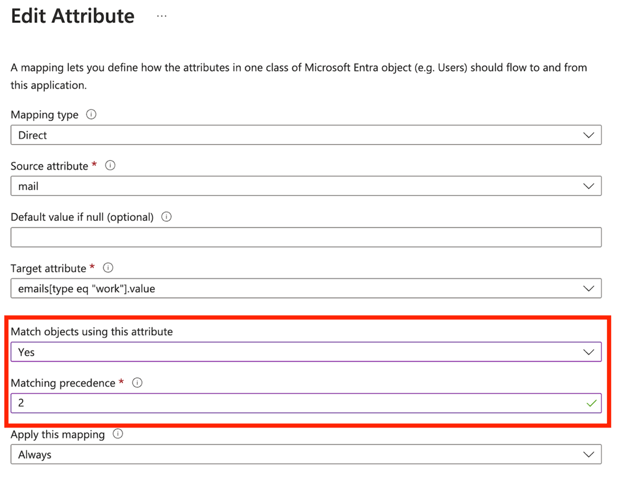
Then click on “Ok” at the bottom. Your User Attribute Mappings should look like the following. As in previous steps, the list sorting may be different in your case, but as long as all the rows and settings are the same, the application is configured correctly:
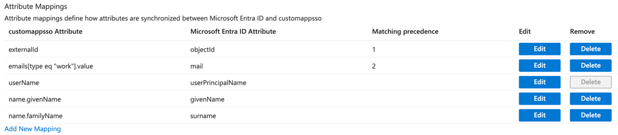
To finalize, we need to map an additional attribute, to be able to determine, whether a user account is enabled/disabled in Entra ID and reflect those changes into AskCody. For this, we will map the “accountEnabled” attribute. To do so, please follow these steps:
Click on Add New Mapping:

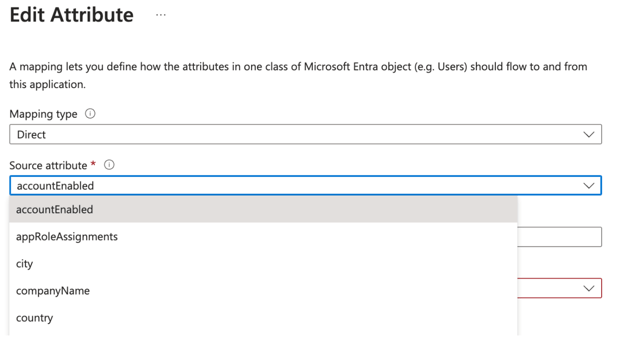
On the presented fields, click on the “Source attribute” one and select “accountEnabled”:
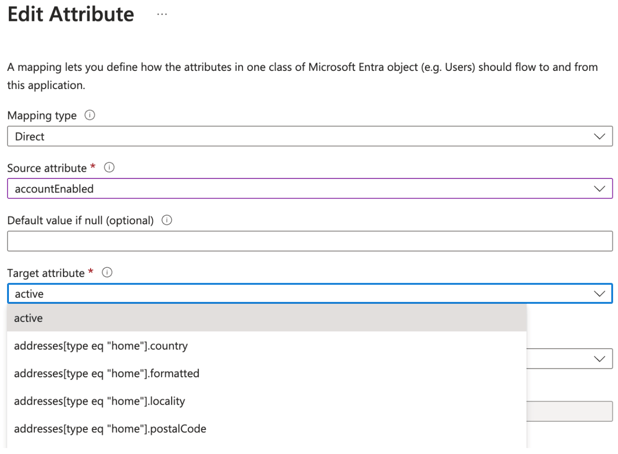
On “Target attribute” please select “active”:
Leave the rest of the settings as they are by default. They should look like the following:
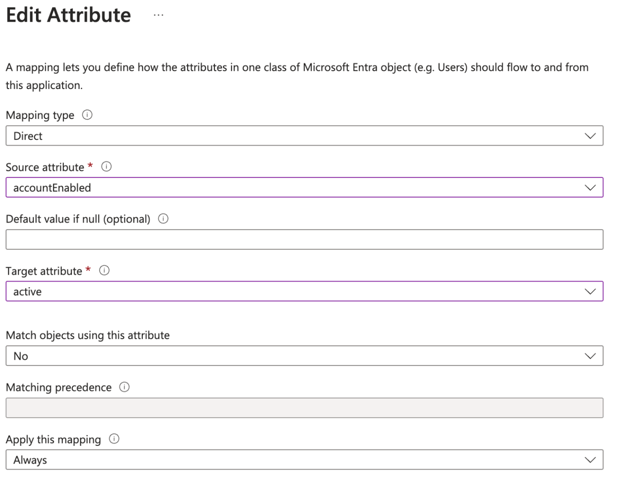
When done, click on “Ok” at the bottom, and then on “Save” at the top to save the changes:
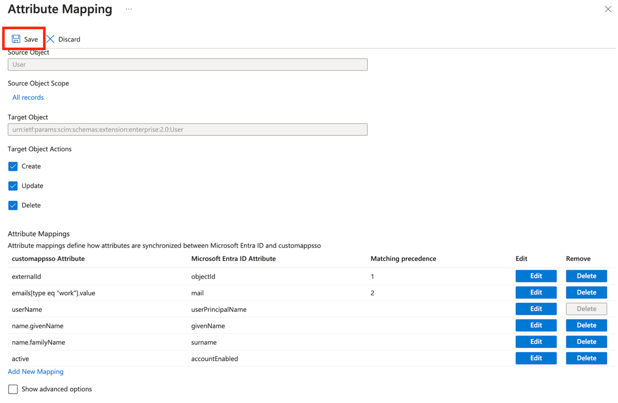
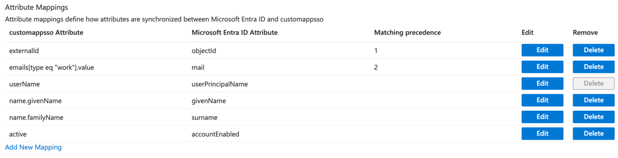
With this, the attribute mapping configuration should be done. For reference, your attribute list for Users should look like the following at this point:
Optional: Sync Cost Centers from Entra ID to AskCody
If your organization stores cost center information in Microsoft Entra ID (for example in an extension attribute), you can sync it into AskCody through SCIM. Add a user attribute mapping from your Entra ID extension attribute to:urn:ietf:params:scim:schemas:extension:enterprise:2.0:User:costCenter
This ensures employees are automatically linked to the correct cost centers in AskCody and see a read-only cost center when placing service requests.
Follow the steps here: Sync Cost Centers from Microsoft Entra ID to AskCody (SCIM)
Next step: Your manual attribute mapping is complete. Return to the main guide and continue with the Adding Groups step to finish setting up your Entra ID integration.