![Logo - Secondary White-1.png]](https://help.askcody.com/hs-fs/hubfs/Logo%20-%20Secondary%20White-1.png?height=50&name=Logo%20-%20Secondary%20White-1.png)
Microsoft started retiring Exchange Web Services (EWS) for Exchange Online on October 1, 2026, and completes the retirement in April 2027. Until your integration is upgraded, it can stop syncing as soon as Microsoft blocks EWS in your tenant. AskCody now connects to Exchange Online through Microsoft Graph, Microsoft's modern and supported API. This article walks you through upgrading your integration. If you would like to learn more about the background, read our product update, Moving from EWS to Microsoft Graph for Exchange Online.
Note: this change only affects Exchange Online connections. Microsoft is not retiring EWS for on-premises Exchange, so on-premises connections are not part of this upgrade. If your organization runs both, only your Exchange Online connections are upgraded.
Requirements for upgrading to Microsoft Graph
-
An Exchange Online (Microsoft 365) connection in the AskCody Management Portal.
-
Access to the AskCody Management Portal with rights to manage integrations.
-
The Microsoft Graph permissions granted in Microsoft Entra ID. If they are not granted yet, the upgrade flow will ask for consent as its first step, and completing that step requires a Microsoft 365 Global Administrator. If you are not one, have your Global Administrator with you, or grant consent in advance using the link from your upgrade email.
The permissions are the same set used by Workplace Central and Maps today:
-
Calendars.Read (Application)
-
Calendars.ReadWrite (Application)
-
GroupMember.Read.All (Application)
-
User.Read.All (Application)
For a full explanation of what each permission is used for, read Permissions used and required connecting AskCody with MS Graph and Entra ID.
How to run the upgrade
1. In the AskCody Management Portal, go to Admin Center, then Integrations, then MS Exchange Integrations.
2. Open your Exchange Online integration.
3. Select Upgrade to Microsoft Graph, next to the Edit button.
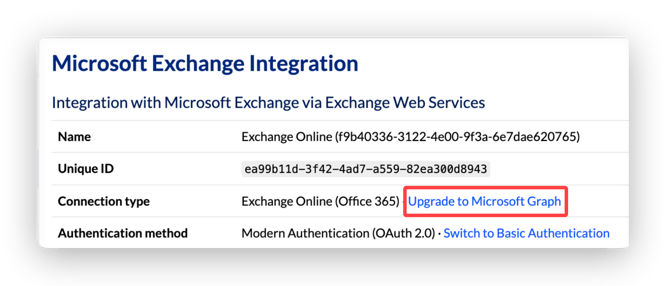
4. AskCody checks whether the Microsoft Graph permissions are granted in your Microsoft 365 tenant:
-
If they are granted, you go straight to the confirmation step.
-
If they are not granted yet, the consent flow starts. Sign in with a Microsoft 365 Global Administrator account, review the permissions, and select Accept. You then continue to the confirmation step
- You will then be redirected to the following page, where you can see the status of the consent for the required Graph permissions for the upgrade. Click on "Upgrade to Microsoft Graph".
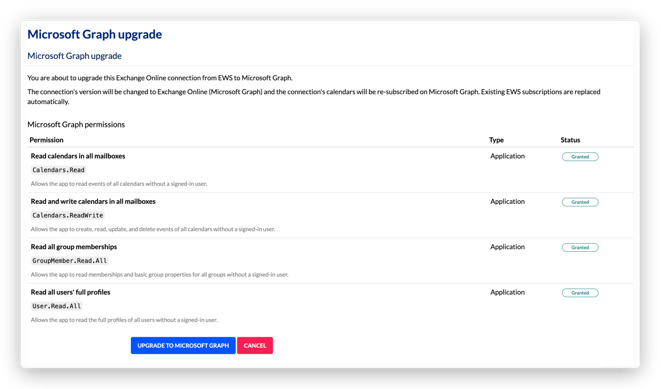
5. The upgrade will then run on the background, and you will receive an email when it completes.
Note: tracked meetings are meetings with a service request that is not yet completed, or with a visitor who is expected or has not yet left. These are carried over so that reschedules and cancellations keep syncing to your service requests and visitor lists.
What changes after the upgrade
Nothing changes in how AskCody looks or works for your users. The same add-ins, portals, displays, and workflows keep working, with no downtime. The upgrade changes how AskCody reads and updates meeting data behind the scenes: through Microsoft Graph instead of EWS.
If something doesn't look right
If calendars or meetings look wrong after the upgrade, contact AskCody Support and we will investigate right away.
Next step: review Permissions used and required connecting AskCody with MS Graph and Entra ID to see how AskCody uses each permission.